
Nightclub door check-in and guest list software
The whole guest list for tonight, on the phone in your hand. Scan a ticket, confirm a booking, move a guest to another table and find anyone by name or phone — standing at the entrance.
Tonight's guest list
- Every request from your booking page lands in one list marked New, with the guest's name, phone, email, party size, the night they picked and any note they left. Bookings your team takes by phone, or enters from the floor plan, land in the same list.
- Filter to one night with the event buttons and four counters follow the filter: total requests, new and unread, confirmed, and guests in total.
- Set a booking to Confirmed, Contacted, Waitlisted, Declined or Cancelled from the row menu, or tick several rows and change them all at once. Confirming emails that guest their ticket; declining or cancelling releases the table and stops the ticket working at the door.
- The search box matches guest name, phone, email, table and event, so a surname or the last digits of a number is enough. Notes show under the guest's name, so the next shift reads them without opening anything. Export CSV downloads the whole night, and Door sheet on the floor plan prints it on paper with a tick box for each arrival.
At the door
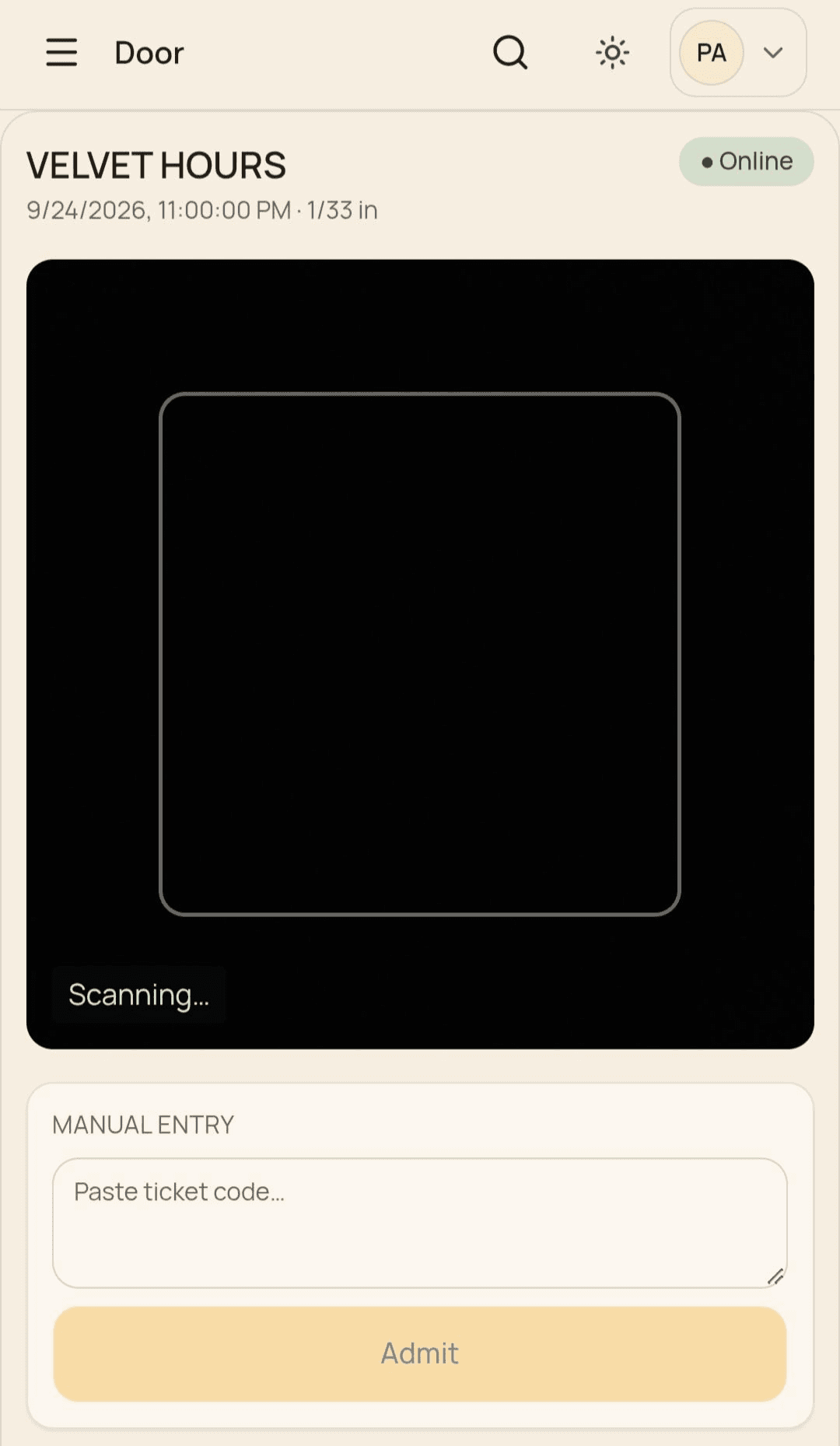
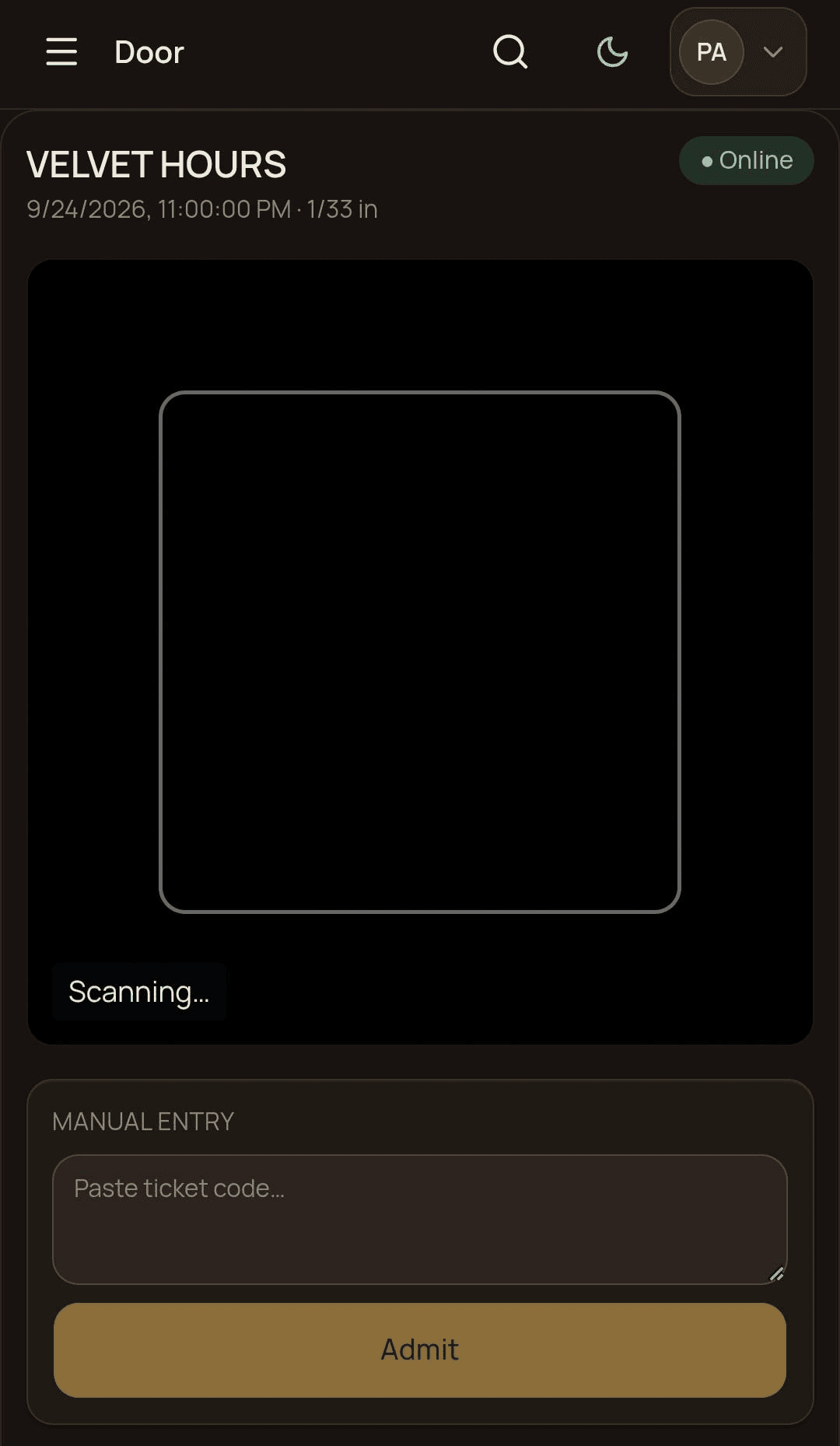
Door staff sign in on any phone and land straight on the check-in screen. It opens on tonight's event with a running count of how many guests are in, and a chip in the corner reads Online or Offline, because every scan is checked against your live guest list.
Point the camera at the guest's QR code, from their screen or a printout. Their card appears — name, party size, table, free entry count, voucher amount and whether they paid online — and one tap on Admit lets them in. After that, Move table puts them somewhere else: the nearest free table, or one you pick from the free tables with their seat counts.
The result fills the screen in colour, with a symbol and words: admitted, already in on this device, already admitted on another device, not confirmed, revoked, or invalid. The amber “another device” result waits for someone to acknowledge it; the rest clear on their own and the camera re-arms in a couple of seconds. Every scan is recorded, refusals included.
Below the scanner, Expected guests lists everyone holding a ticket tonight with their party size and table, and marks the ones already In. It updates itself when another device admits someone. If the camera cannot be used — no camera, or a handheld scanner that types codes — paste the code into Manual entry and admit from there.
Tickets, your team and more than one venue
Confirming a booking emails that guest their ticket: a QR code and a link to a ticket page that always shows the current details, so a table change at 23:40 is on their phone. Resend ticket in the row menu sends the same one again. A ticket stops working when the booking is cancelled or declined, once it has been scanned in, and 8 hours after the event starts.
Give each person on the entrance their own login: Staff, their email, Role set to Door. A door login sees the admit tools and nothing else — no reservations list, no events, no settings — and the guest card never shows a phone number, an email address or the note your team wrote.
The activity log keeps the 200 most recent actions with the time, the email address of whoever did it, what was done and to what. Admissions taken at the door are in there too, so “who let that guest in, and when” has an answer.
Each venue you run is its own panel at its own web address, with its own branding and its own guest list. A login belongs to one venue — the same email address can hold one at each venue you run — and one venue's guest list is never reachable from another venue's panel.
What it does not do yet
Check-in needs a connection: every scan is confirmed against your live guest list, so there is no offline mode, and Move table is unavailable while the screen says Offline. Tickets go out by email only — a guest who left just a phone number never gets one and cannot be scanned, so admit them from the Expected guests list. Door staff cannot create a booking; a walk-in is entered by an admin from Reservations or the floor plan. There are two roles, Admin and Door, with nothing in between, and after the night there is no attendance report beyond the running count and the activity log.
Step-by-step guides
Get your door ready
Invite your entrance staff under Staff, set their role to Door, and they can check in your first guest the same night.